NFC Setup Guide
Learn how to tap and use your TinyDabba NFC card correctly on supported smartphones.
📌 If your phone does not support NFC, don't worry — simply scan the QR code on the card instead.
1. Make Sure Your Card is Configured
Visit https://portal.tinydabba.com to activate or update the content on your card.
2. Enable NFC on Your Phone
| Device | How to Enable NFC |
|---|---|
| Android | Settings → Connections → NFC → Turn ON |
| iPhone (7 and above) | NFC is typically enabled automatically. No action required. |
3. Locate the NFC Antenna
- 📍 iPhone – Top back area (usually near the camera)
- 📍 Android – Center back area (varies by model)
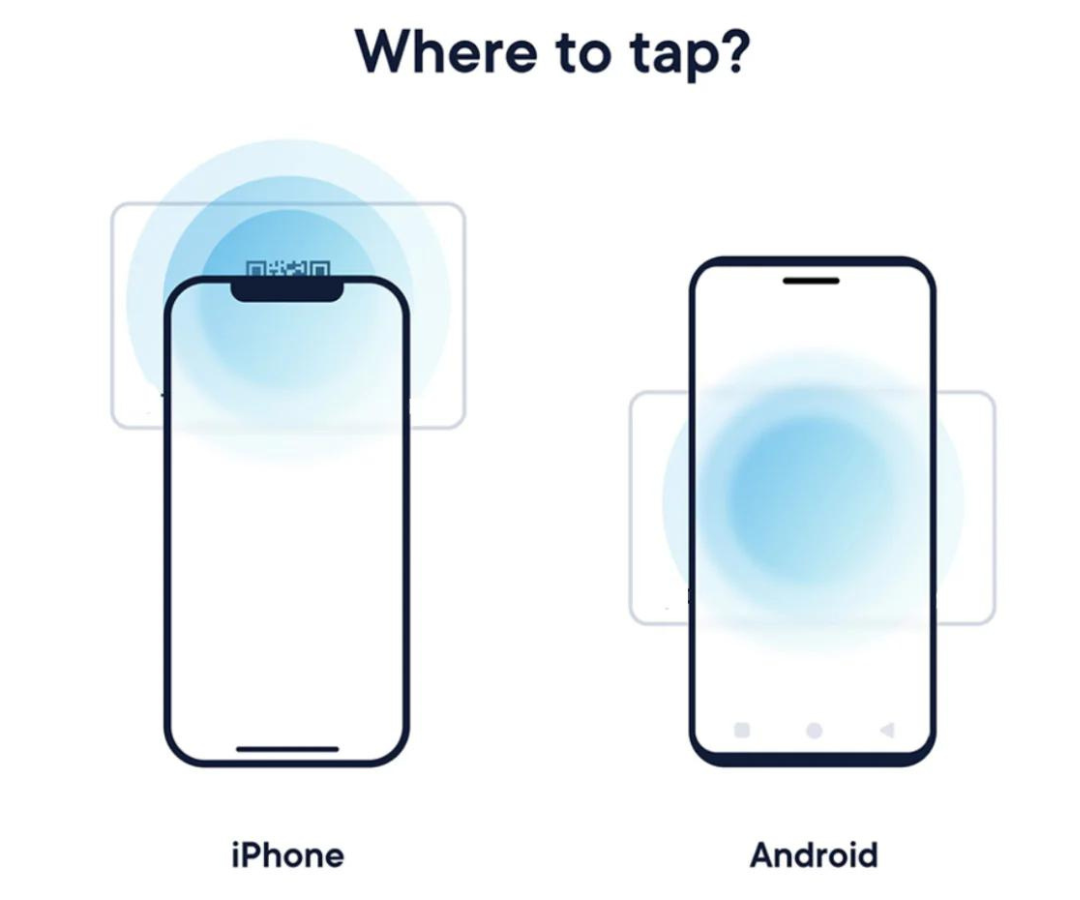
4. Tap Your Card
Bring the TinyDabba NFC card close to the NFC antenna area of your phone. You should feel a vibration or see a pop-up link instantly.
5. Tap the Link Prompt
Tap the link that appears — it could open your digital business card, review page, or profile.
📺 Quick Video Help
⚠️ Some phones require the screen to be unlocked for NFC to work. Budget models may not have NFC functionality.